Upload Resume to LinkedIn: Resume Guide with Examples 2026
Learn how to upload your resume to LinkedIn the right way in 2026, with clear steps and real examples to help you get noticed.
Overview
LinkedIn is now a major hiring platform, and uploading your resume correctly can help you get noticed faster in 2026. This guide explains how to upload a resume for job applications, showcase it on your profile, or save it for future use. You’ll also learn resume optimization tips, safety practices, and smart uploading methods, including using tools like Sound CV for a polished resume.
LinkedIn has become the go-to platform for professionals worldwide not just for networking but also for job hunting. Whether you’re applying for positions directly through LinkedIn or just want recruiters to discover your profile, knowing how to upload a resume to LinkedIn can give you a competitive edge in 2026.
This complete guide will walk you through how to upload a resume in LinkedIn, explain where to upload a resume in LinkedIn, and show you how to upload your CV on LinkedIn for maximum visibility step by step, with examples.
Key Points:
LinkedIn is widely used for finding jobs and connecting with recruiters, so uploading a resume can improve your chances in 2026.
A resume upload complements your LinkedIn profile by giving recruiters a downloadable, professional document.
Benefits include faster job applications, better visibility, stronger personal branding, easy updates, and flexibility for multiple resume versions.
Before uploading, optimize your resume by keeping it concise, using keywords, removing private details, saving it as PDF, and naming the file professionally.
There are three ways to upload a resume: via Easy Apply when applying, in the Featured section for recruiters to view, and in Job Settings for future applications.
You can upload resumes on both desktop and mobile using similar steps.
Adding short, keyword-rich titles and descriptions improves recruiter engagement.
Key safety tips include removing personal info, professional file naming, updating regularly, and aligning resume details with your profile.
Avoid mistakes such as uploading outdated resumes, using Word files, and poorly named documents.
Using a tool like Sound CV helps you create a clean, keyword-optimized, and privacy-safe resume for LinkedIn uploads.
Why Upload Resume to LinkedIn?
Your LinkedIn profile already acts as a digital resume, but uploading your CV or resume file provides added value for recruiters and hiring managers.
Here’s why it’s beneficial:
- Faster Job Applications: You can apply for jobs instantly using the “Easy Apply” option.
- More Visibility: Recruiters searching for talent can access your uploaded resume directly.
- Professional Branding: A resume attachment reinforces your credibility and professional image.
- Easy Updates: You can quickly update or replace your resume anytime to match current job trends.
- Flexibility: You can keep multiple versions of your resume for different roles (marketing, design, tech, etc.).
Also Read:Graphic Design Skills
Before You Upload: Optimize Your Resume for LinkedIn
Before learning how to upload resume in LinkedIn, make sure your resume is LinkedIn-friendly:
- Keep It Concise: Use a one-page resume with clear formatting.
- Use Keywords: Include job-specific and industry-related terms for better visibility in searches.
- Remove Personal Info: Don’t include your home address or private contact details LinkedIn is a public platform.
- Save It as a PDF: PDF files maintain consistent formatting across all devices.
- Rename the File Professionally: Example John_Doe_Marketing_Manager_Resume.pdf.
Also Read:Languages Known in CV: CV Guide with Templates & Examples
How to Upload Resume in LinkedIn Step-by-Step Guide
There are three main ways to upload your resume to LinkedIn depending on your purpose:
- For applying to jobs,
- To display on your profile, and
- For future job applications in your LinkedIn settings.
Let’s go through each one.
Option 1: Upload Resume When Applying for Jobs Easily
The easiest and most common way to upload a resume to LinkedIn is during the job application process using the “Easy Apply” feature.
Steps:
- Go to the Jobs section at the top of your LinkedIn homepage.
- Search for a job that matches your skills.
- Click Easy Apply on the listing.
- A pop-up window will appear click Upload Resume.
- Choose your PDF or Word file from your computer.
- Click Submit to finish your application.
Your resume will be saved in LinkedIn’s database for future use, so you won’t have to re-upload it every time.
Pro Tip: Customize your resume for each application by uploading a version tailored to the specific role.
Also Read:Chronological Resume Format Free Template + Pro Tips
Option 2: Upload Resume to Your LinkedIn Profile Visible to Recruiters
You can also make your resume accessible to recruiters by adding it directly to your profile. This helps you appear more professional and job-ready.
Here’s how to upload your resume to your profile:
- Go to your LinkedIn profile.
- Click on the ‘Add Profile Section’ button.
- Under the “Featured” section, click Add Media.
- Choose your resume file (PDF or DOC).
- Add a short title and description, such as: Marketing Professional Resume 2025 Edition
- Click Save.
Your resume will now appear in the “Featured” section on your LinkedIn profile visible to recruiters, hiring managers, and potential employers.
Example:
Title: John Doe – Project Manager Resume (2025)
Description: Updated resume highlighting leadership in digital project management and Agile methodologies.
Pro Tip: Only use this method if you’re open to new job opportunities. If you’re currently employed, adjust your LinkedIn privacy settings to limit visibility.
Also Read:Hobbies for Resume: Best Examples
Option 3: Upload Resume in LinkedIn Settings For Future Applications
You can also pre-upload your resume in your LinkedIn account settings so it’s automatically available for future job applications.
Steps:
- Click on your profile icon in the top-right corner.
- Select Settings & Privacy from the dropdown.
- Go to the Job Application Settings section.
- Scroll down to Manage Your Resumes.
- Click Upload Resume and select your file.
- Save the settings.
This makes it convenient to apply for multiple roles quickly without re-uploading your resume each time.
Also Read:Difference Between CV and Resume with Examples
Pro Tip: You can store up to four versions of your resume in LinkedIn settings — perfect for targeting different industries or positions.
Where to Upload Resume in LinkedIn
If you’re wondering where to upload resume in LinkedIn, the answer depends on your purpose:
This flexibility allows you to control who sees your resume keeping your information secure while increasing job opportunities.
Also Check Out Resume Related Blog:
How to Upload CV on LinkedIn Through Your Mobile
If you’re using LinkedIn on your phone, you can easily upload your CV using the mobile app.
Steps:
- Open the LinkedIn App on your smartphone.
- Tap on your profile photo, then select View Profile.
- Scroll to the Featured section.
- Tap the ‘+’ icon and select Add File.
- Choose your resume (from phone or cloud storage).
- Add a professional title and tap Save.
You can also upload it during job applications through the LinkedIn mobile jobs tab, following the same process as desktop.
Also Read:Strengths and Weaknesses in CV: Examples & Writing Tips
Examples of Resume Upload Descriptions
When adding your resume to the Featured section, use short, keyword-rich descriptions that attract recruiters.
Example 1:
John Smith — Sales Executive Resume (2025)
A detailed resume showcasing 7+ years of experience in B2B sales, account management, and client retention strategies.
Example 2:
Emma Johnson — Graphic Designer CV (Creative Portfolio)
Updated 2025 CV highlighting expertise in UI/UX design, Adobe Creative Suite, and branding projects.
Example 3:
David Lee — Software Engineer Resume (2025)
Full-stack developers resume focusing on Python, React, and cloud infrastructure skills.
These examples make your profile look polished and informative.
Tips for Uploading Resume Safely on LinkedIn
- Remove Personal Information: Avoid sharing your home address or personal phone number.
- Use a Professional File Name: Example – Anna_Brown_Product_Manager_Resume.pdf.
- Keep Your Resume Updated: Refresh your uploaded document every 3–6 months.
- Use Privacy Settings: Set “Job-Seeking Preferences” to notify recruiters that you’re open to new roles.
- Align Resume with Profile: Make sure your resume details (job titles, dates, skills) match your LinkedIn profile.
Common Mistakes to Avoid When Uploading Resume to LinkedIn
Even seasoned professionals make errors when uploading their resumes. Avoid these pitfalls:
- Uploading resumes with outdated information.
- Using casual file names like “MyResume.docx.”
- Duplicating the same content across multiple sections.
- Uploading in Word format instead of PDF (to preserve layout).
- Forgetting to proofread before posting publicly.
Conclusion
In 2026, knowing how to upload a resume on LinkedIn the right way can dramatically improve your visibility and job prospects.
Whether you use the Easy Apply feature, showcase your resume in the Featured section, or store it under Job Settings, each method serves a different purpose. If you’re using a resume created with a tool like Sound CV, make sure you upload a clean, keyword-optimized, and privacy-safe version that reflects your professional strengths.
So, take a few minutes today to upload your resume to LinkedIn and make your profile stand out, because your next opportunity might just be one click away.
FAQs
Frequently asked questions about this topic
Related Blogs
Explore more insights and guides you might like.
How to List References on a Resume in 2026
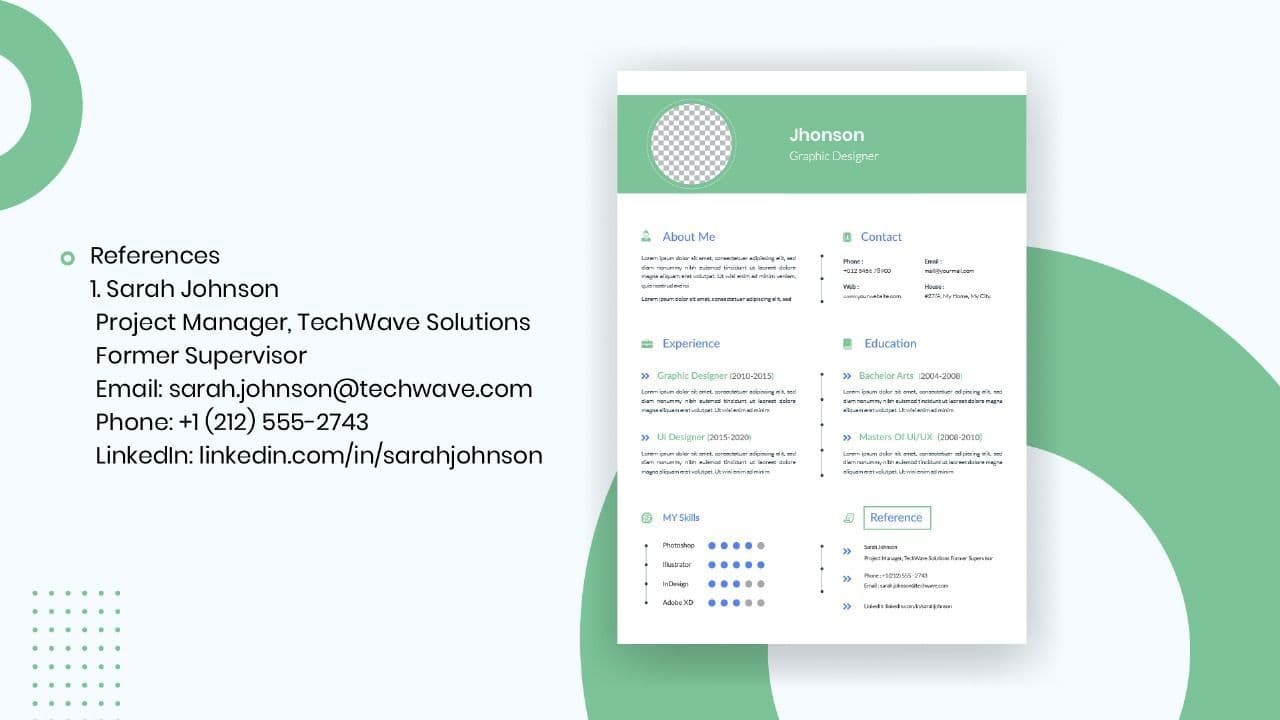
Learn the modern 2026 approach to listing references on your resume for maximum professionalism and recruiter impact.

Is Sound CV good for students and fresh graduates with no experience?
Sound CV is perfect for students and fresh graduates, helping them create professional resumes that highlight skills, projects, and potential even with little or no work experience.
Why Sound CV Is Different from Other AI Resume Builders
Sound CV stands out by creating job-focused, ATS-friendly resumes that highlight real achievements, not just generic content.

Resume Format for HR Job: Professional Guide and Sample Templates
A complete guide to the best resume format for HR jobs, with expert tips and sample templates to help you create a professional and job-ready resume.
How Does the Sound CV Resume Score Checker Work?
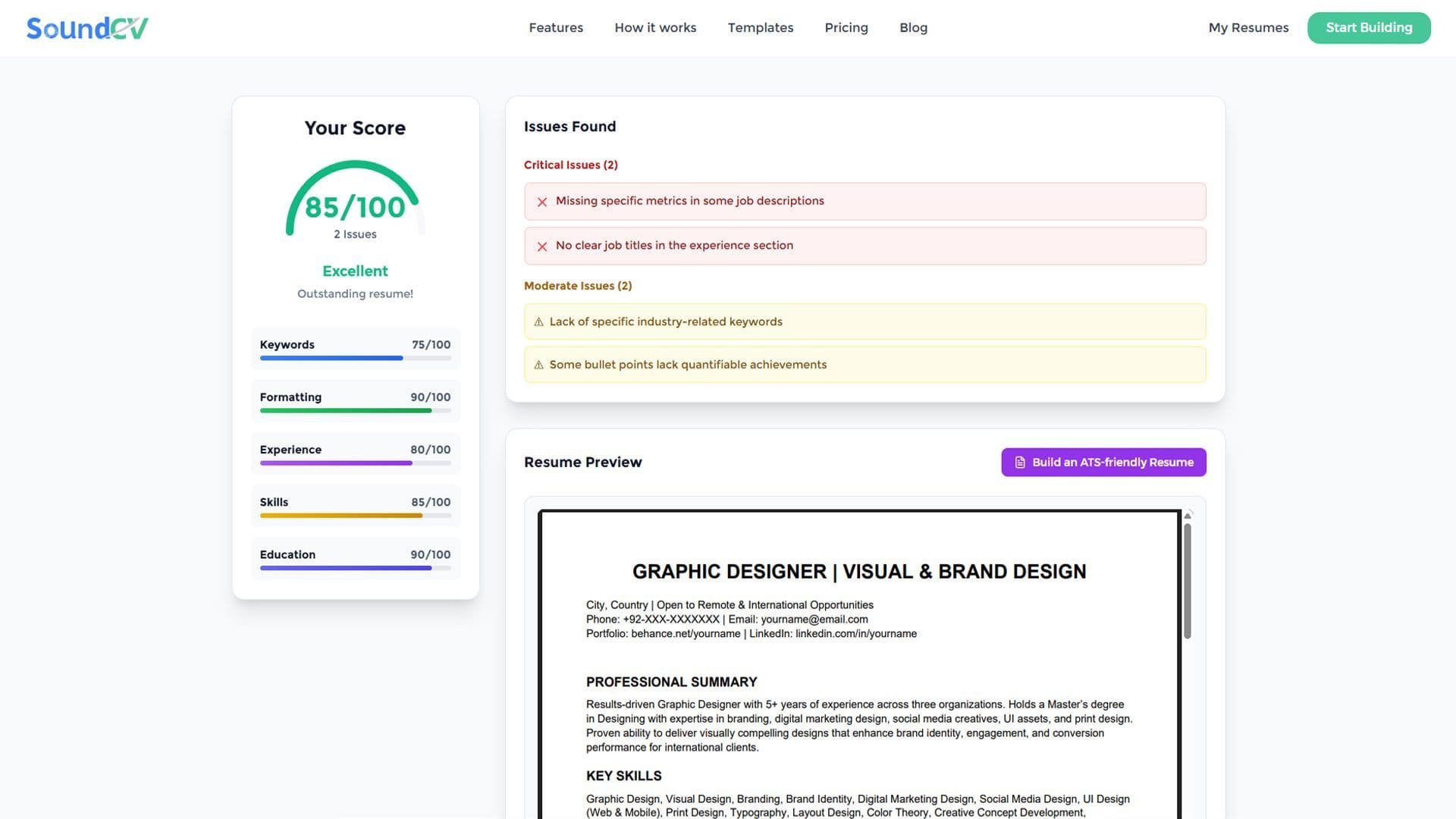
The Sound CV Resume Score Checker analyzes your resume against ATS requirements, job-specific keywords, and structure to provide an instant, actionable score.

What Is a Sound CV? Features, Benefits, and How It Works
A Sound CV is an AI-powered resume that is tailored, ATS-optimized, and designed to showcase your skills and achievements to help you stand out to recruiters.