How to Write LinkedIn Profile in Resume: A Complete Guide
Learn how to mention your LinkedIn profile in your resume the right way with this simple, practical guide.
Overview
A polished resume isn’t enough anymore. Recruiters also check your LinkedIn, so adding your profile link can make your application stronger. This guide explains how to customize your URL, place it correctly on your resume, format it cleanly, and update your profile before sharing it. Done right, your LinkedIn link boosts trust and improves your chances of getting noticed
In today’s competitive job market, having a polished resume isn’t enough. Recruiters also want to see your online presence and LinkedIn is the top platform for professional networking. That’s why many job seekers wonder: how to write a LinkedIn profile in a resume the right way?
Including your LinkedIn profile can strengthen your application by showcasing more than what fits on a one-page CV. But placement, formatting, and customization matter. In this guide, we’ll explain exactly where to put LinkedIn on a resume, how to add a LinkedIn profile link in CV, and best practices for how to share LinkedIn on resume without mistakes.
Key Points:
Adding your LinkedIn link on your resume is now expected by recruiters.
Place it in the header with your contact details.
Use a clean, customized URL, not a long default link.
Keep the link clickable in your PDF or Word resume.
Make sure your LinkedIn profile is updated and matches your resume.
Use a small icon only if your resume design supports it.
Test the hyperlink after exporting your resume.
A strong LinkedIn profile improves trust and helps you stand out.
Sound CV encourages keeping your LinkedIn and resume aligned for better results.
Why Include LinkedIn on Your Resume?
Before learning how to write LinkedIn profile in resume, let’s understand why it matters:
- Extended Information – Your resume may be limited to one or two pages, but your LinkedIn can include detailed work history, endorsements, and recommendations.
- Credibility – Recruiters cross-check your CV against your online presence. A polished LinkedIn profile increases trust.
- Professional Branding – A customized LinkedIn URL looks clean and professional.
- Networking Opportunities – Hiring managers may connect with you directly.
- Job Application Requirements – Many applications now request a LinkedIn link.
Adding LinkedIn creates a complete candidate profile, giving you an edge in the hiring process.
How do I include my LinkedIn profile link in a resume professionally?
You should place your LinkedIn profile link in the resume header, next to your email and phone number, using a clean, shortened URL (e.g., linkedin.com/in/yourname). Keep it clickable on digital resumes and ensure the profile is updated and matches your resume.
Including your LinkedIn profile in a resume is a smart way to show recruiters your skills, achievements, projects, and recommendations. The key is to place it neatly and professionally so it looks intentional—not cluttered.
Best Practices to Add a LinkedIn Link Professionally
Place It in the Resume Header
This is the standard and most professional location.
Add it beside your:
Name
Email
Phone number
Location (optional)
It keeps all contact information in one clean line.
Use a Clean, Short URL
Avoid long tracking links or messy URLs.
Use:
linkedin.com/in/yournameOr a custom URL like:
linkedin.com/in/ahmad-khan
You can customize it in LinkedIn settings.
Make It Clickable on Digital PDFs
Recruiters often view resumes digitally, so make the link clickable in:
PDF
Word documents
Online applications
This improves accessibility and recruiter experience.
Match LinkedIn With Your Resume
Before adding the link, ensure your profile is:
Fully updated
Keyword-optimized
Consistent with your resume
Free from outdated jobs or details
A polished profile increases your credibility.
Use a LinkedIn Icon (Optional)
If your resume design supports it, add a small clean icon next to the link.Avoid using large graphics or colorful icons.
How to Write LinkedIn Profile in Resume: Step by Step
Customize Your LinkedIn URL
Before adding your profile, ensure the link looks professional. Instead of a default URL like:
linkedin.com/in/john-doe-3293847
Customize it to something clean:
linkedin.com/in/johndoe
This simple step makes your LinkedIn profile link in CV neat and recruiter-friendly.
Also Read:Good CV Examples for Your First Job
Decide Where to Put LinkedIn on Resume
The best location is in the contact information section at the top of your resume. Place it alongside your phone number, email, and location. Example:
John Doe
📞 (123) 456-7890 | ✉️ johndoe@email.com | 🌍 linkedin.com/in/johndoe
Other optional placements:
- In the header/footer of your resume for consistent branding.
- In a separate section called “Online Profiles” if you also share links to a portfolio or GitHub.
This answers one of the most common questions: where to put LinkedIn on a resume.
Format the Link Properly
When learning how to share LinkedIn on resume, formatting matters:
- Use a hyperlink in digital versions so recruiters can click directly.
- For printed resumes, use a short customized URL to avoid clutter.
- Keep fonts consistent with your overall resume design.
Also Read:Resume Summary for Freshers with Best Examples
Don’t Just Paste the Link Match It with Your Branding
The biggest mistake candidates make when figuring out how to write a LinkedIn profile in their resume is pasting a messy URL. Instead:
- Label it clearly as “LinkedIn” or “LinkedIn Profile.”
- Match it with the style of your email and phone number.
- Use icons (if your resume design allows) for a modern look.
Best Practices for Including LinkedIn
Do’s
- Keep your LinkedIn updated before adding it.
- Use a customized URL for a professional appearance.
- Place it where recruiters can easily spot it.
- Ensure your LinkedIn profile matches the information in your resume.
Don’ts
- Never add an incomplete or outdated LinkedIn profile.
- Avoid long, cluttered links that look unprofessional.
- Don’t list LinkedIn in multiple sections it looks repetitive.
Also Check Out Our Other Resume Related Blogs:
How to format a LinkedIn profile hyperlink in a PDF resume?
Format your LinkedIn hyperlink using a clean, customized URL (linkedin.com/in/yourname), place it in the resume header, and make it clickable before exporting to PDF. Use consistent font styling, avoid long tracking links, and test the PDF to ensure the hyperlink works.
Formatting a LinkedIn hyperlink properly is essential because PDF resumes are viewed digitally by recruiters, ATS systems, and hiring managers. A clean, functional LinkedIn link improves professionalism and accessibility.
Use a Clean, Custom LinkedIn URL
Avoid long or messy URLs.
Best format:
linkedin.com/in/yourname
linkedin.com/in/your-brand-name
You can customize this in your LinkedIn settings.
Place the Link in the Resume Header
The most professional location is the contact section at the top.
Example layout:
Email
Phone number
Location (optional)
LinkedIn URL (hyperlinked)
This keeps your contact details unified and easy to find.
Make the Link Clickable Before Exporting
Always add the hyperlink in Word or Google Docs before converting to PDF.
Steps:
Highlight the LinkedIn text
Press Ctrl + K or Cmd + K
Paste your LinkedIn URL
Apply it
Export/save as PDF
PDF viewers keep the link clickable if added correctly.
Keep the Formatting Minimal and Professional
Avoid:
Blue underlined default styling
Bright colors
Overly decorative icons
Preferred styling:
Same font as your contact info
Slight gray or black text
Optional small LinkedIn icon (if aligned with resume design)
Test the Hyperlink After Exporting
Open the PDF and click the link to confirm:
It opens correctly
It directs to the exact profile
No login pop-up issues
No broken URL or typo
This final check ensures the recruiter gets a smooth experience.
How to Optimize LinkedIn Before Adding It
Simply knowing how to share LinkedIn on a resume isn’t enough—you must ensure the profile itself is impressive. Here’s how:
- Update Your Headline & Summary – Make them keyword-rich and job-relevant.
- Complete Your Experience Section – Align it with your resume, but add more details.
- Showcase Skills & Endorsements – Highlight job-relevant skills.
- Add Recommendations – Recruiters love to see peer or manager testimonials.
- Highlight Achievements – Upload projects, portfolios, or certifications.
By optimizing your profile first, adding a LinkedIn profile link in CV enhances rather than weakens your application.
Also Read:Skills in Resume for Freshers with No Experience
Example: How to Write LinkedIn Profile in Resume
Here’s a quick example of the right format:
Contact Information Section
Jane Smith
📞 (987) 654-3210 | ✉️ jane.smith@email.com | 🌍 linkedin.com/in/janesmith
This is simple, professional, and instantly accessible.
Why LinkedIn Strengthens Your Resume
Adding LinkedIn isn’t just about placement it’s about standing out. Here’s why it matters:
- Recruiters spend up to 6 hours per week sourcing candidates on LinkedIn.
- A strong LinkedIn increases your professional credibility.
- Many employers verify applicant information through LinkedIn.
- Including your link shows you’re digitally savvy and updated.
When you understand how to write a LinkedIn profile in a resume strategically, you increase your visibility, credibility, and chances of getting shortlisted.
Conclusion
Adding your LinkedIn to your resume is no longer optional. It’s a necessity in today’s digital job market. When you understand how to write a LinkedIn profile in your resume the right way, you give recruiters quick access to your full professional story something Sound CV always encourages job seekers to focus on.
The key steps include customizing your URL, knowing where to place LinkedIn on your resume, formatting it cleanly, and making sure your profile is updated before sharing it. A strong LinkedIn not only supports your CV but also reflects your personal brand, credibility, and readiness for new opportunities.
So, update your LinkedIn today, add a clean LinkedIn profile link in your CV, and apply with confidence. With guidance from Sound CV, you can present a resume that matches the quality of your online presence.
FAQs
Frequently asked questions about this topic
Related Blogs
Explore more insights and guides you might like.
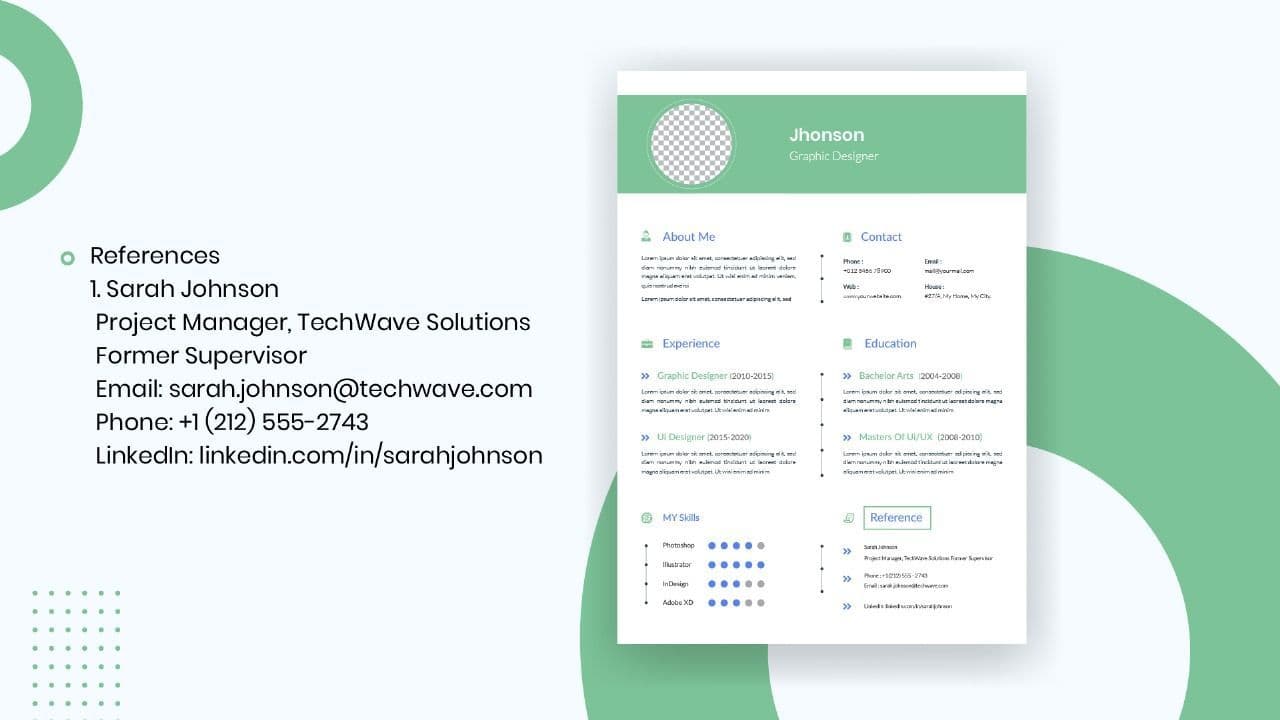
How to List References on a Resume in 2026
Learn the modern 2026 approach to listing references on your resume for maximum professionalism and recruiter impact.

Is Sound CV good for students and fresh graduates with no experience?
Sound CV is perfect for students and fresh graduates, helping them create professional resumes that highlight skills, projects, and potential even with little or no work experience.
Why Sound CV Is Different from Other AI Resume Builders
Sound CV stands out by creating job-focused, ATS-friendly resumes that highlight real achievements, not just generic content.

Resume Format for HR Job: Professional Guide and Sample Templates
A complete guide to the best resume format for HR jobs, with expert tips and sample templates to help you create a professional and job-ready resume.
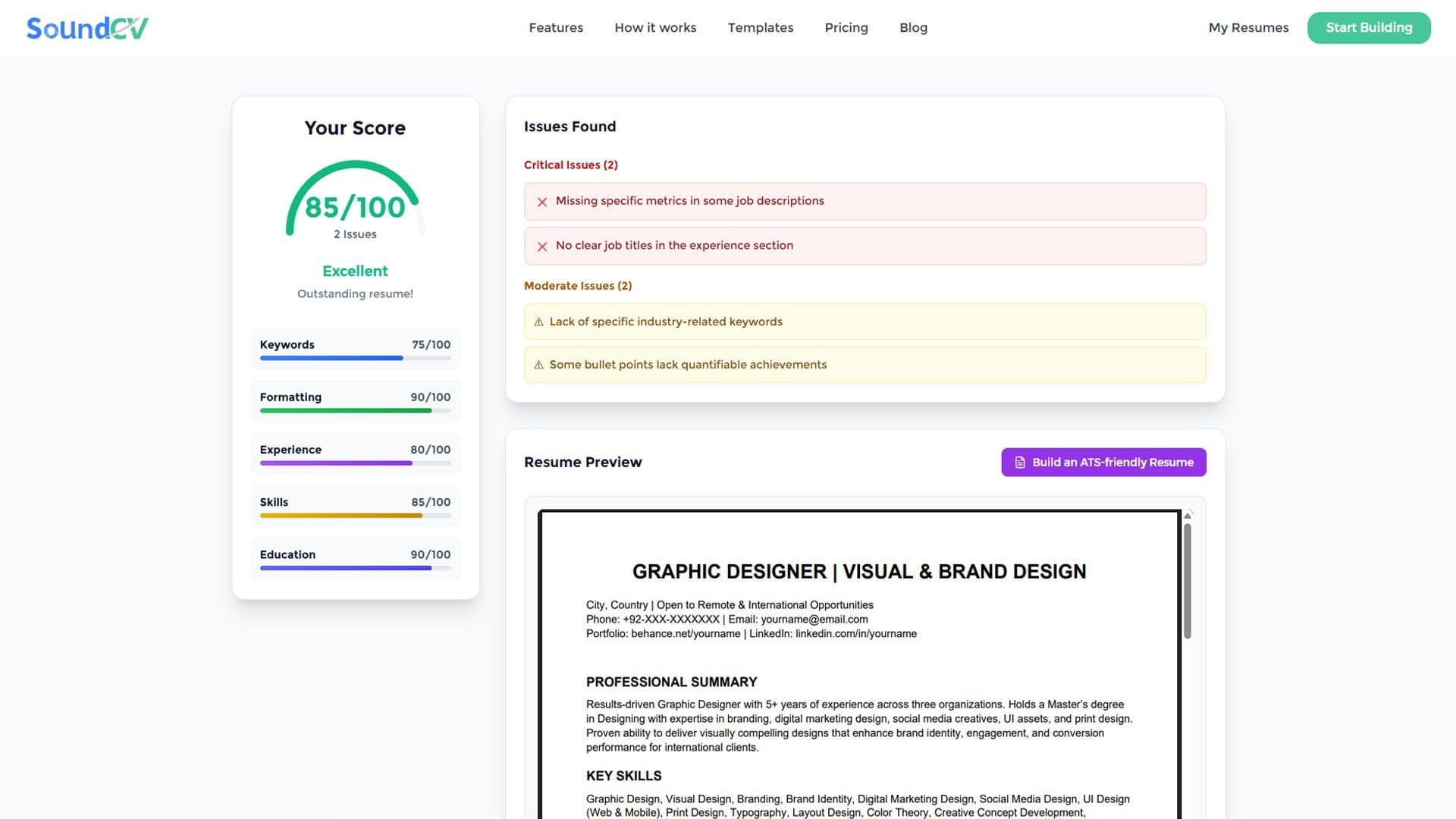
How Does the Sound CV Resume Score Checker Work?
The Sound CV Resume Score Checker analyzes your resume against ATS requirements, job-specific keywords, and structure to provide an instant, actionable score.

What Is a Sound CV? Features, Benefits, and How It Works
A Sound CV is an AI-powered resume that is tailored, ATS-optimized, and designed to showcase your skills and achievements to help you stand out to recruiters.